Home
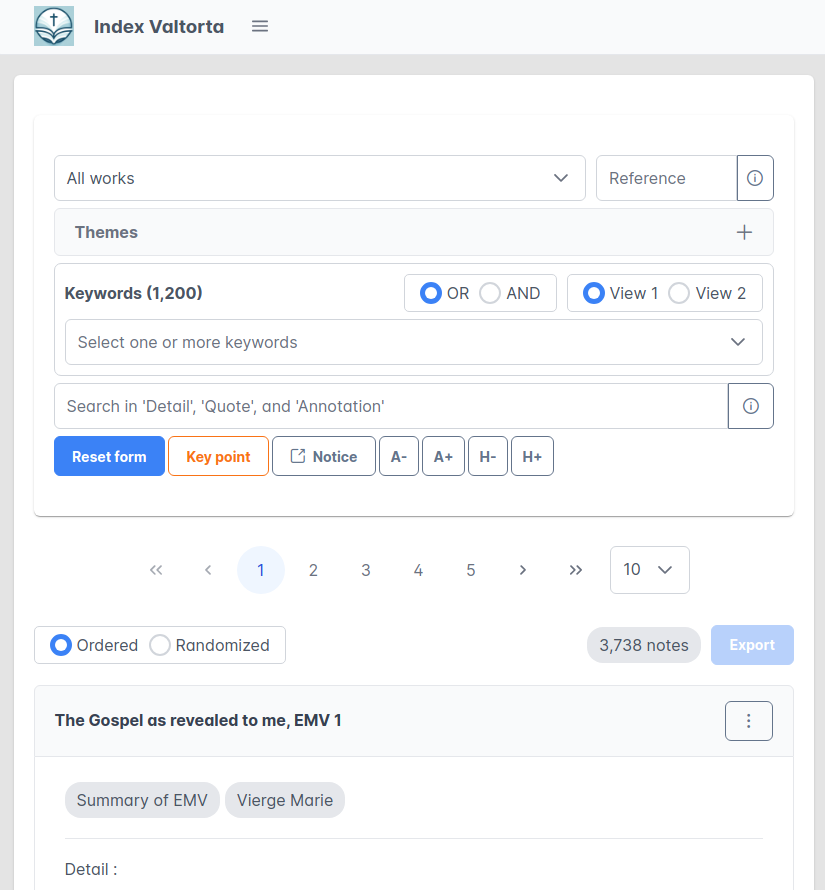
On the homepage, you will first find the search form, followed by the list of notes that match your search.
Let's start with the search form.
This form works like a funnel, with the filters applied from top to bottom.
Filter by work
Filter by reference
Click the information button to understand how to use this field. An explanatory modal window will appear.
Filter by theme
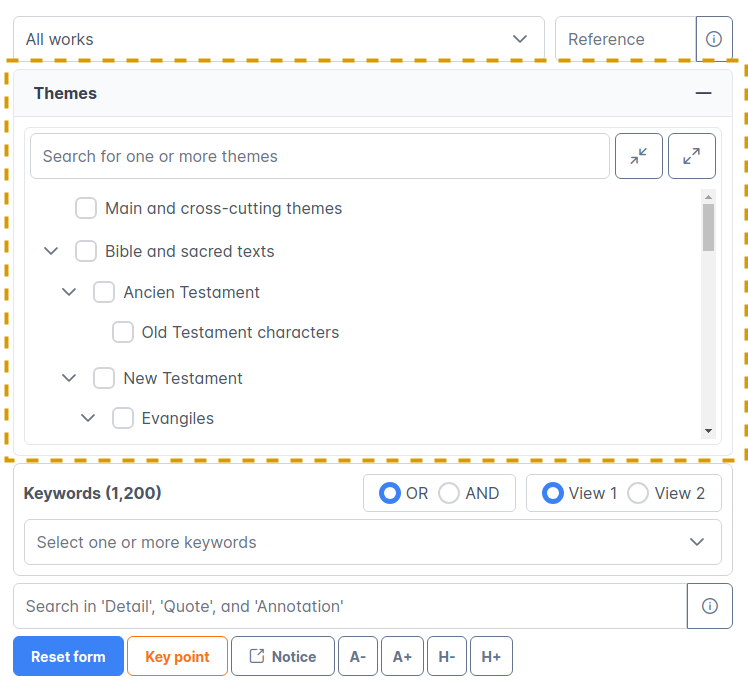
The person in charge of note-taking assigns one or more keywords to each theme. By selecting a theme, you access all the notes that contain at least one keyword associated with that theme.
Additionally, when you select themes, the list of available keywords in the keyword filter automatically adjusts based on the selected themes.
The list of themes is presented in a hierarchy, allowing you to more precisely select the theme you are looking for.
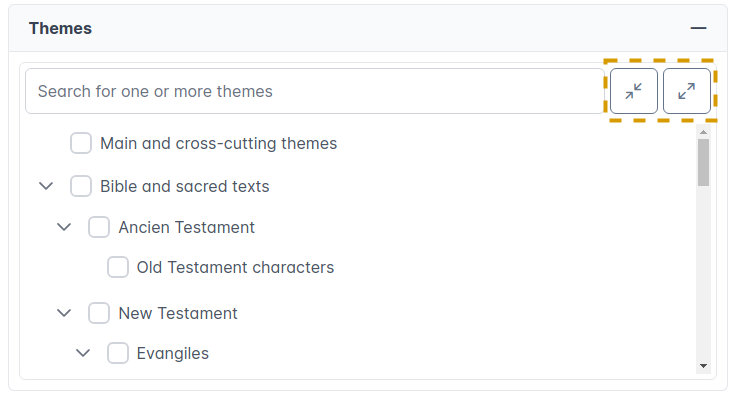
By clicking the arrows above, you can expand or collapse the theme hierarchy as you wish.
Note that on smaller screens, the theme section is hidden.
Filter by keywords
For the keyword filter, you can choose between two different views:
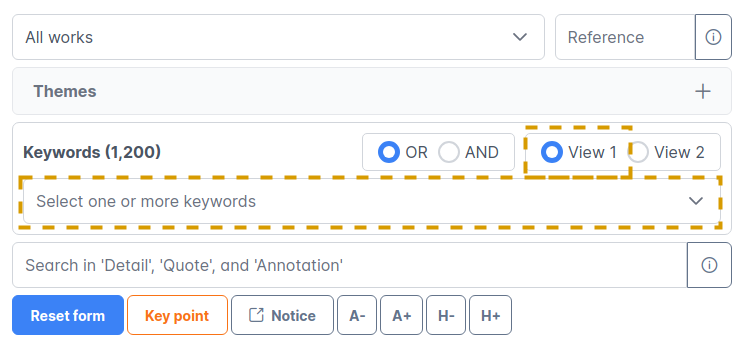
View 1
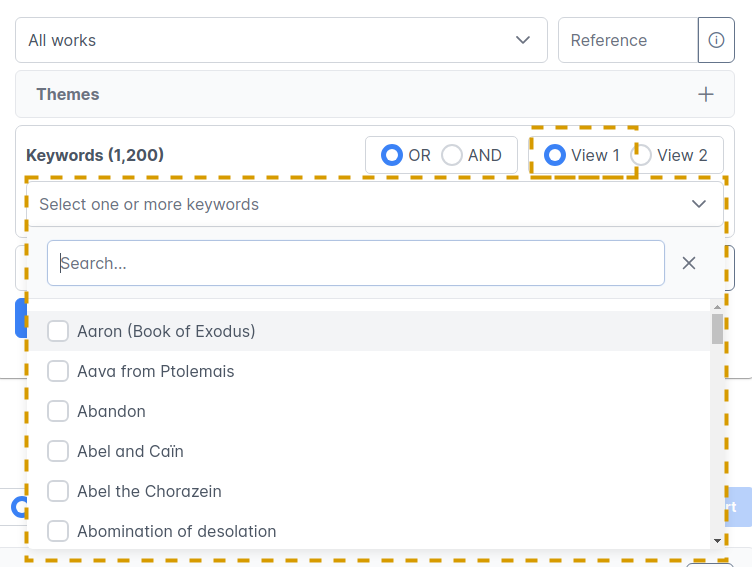
View 1 - open
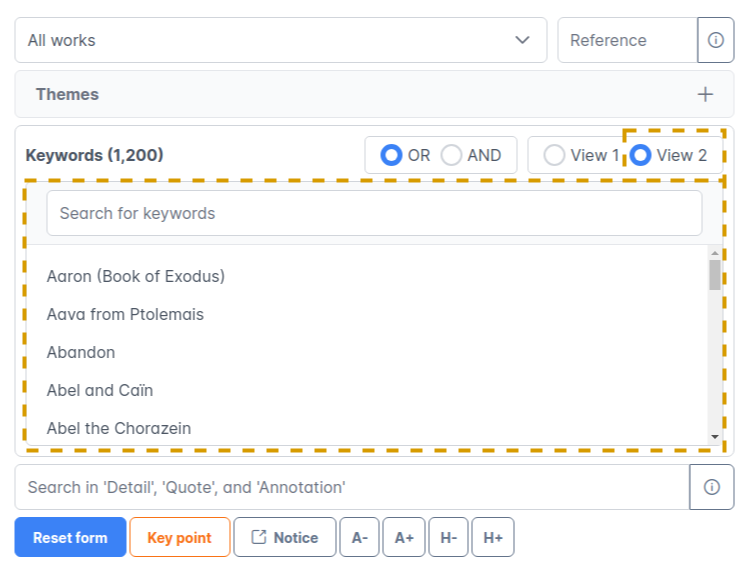
View 2
Both views are equivalent. You can choose the one you prefer.
Two filter modes are available:
-
"OR" filter: All notes appearing in your search results will contain at least one of the keywords you selected.
-
"AND" filter: All notes appearing in your search results will contain all the keywords you selected.
- This mode is useful if you have many results for a keyword and want to refine your search.
To remove a keyword from your selection, you can click on the following areas:
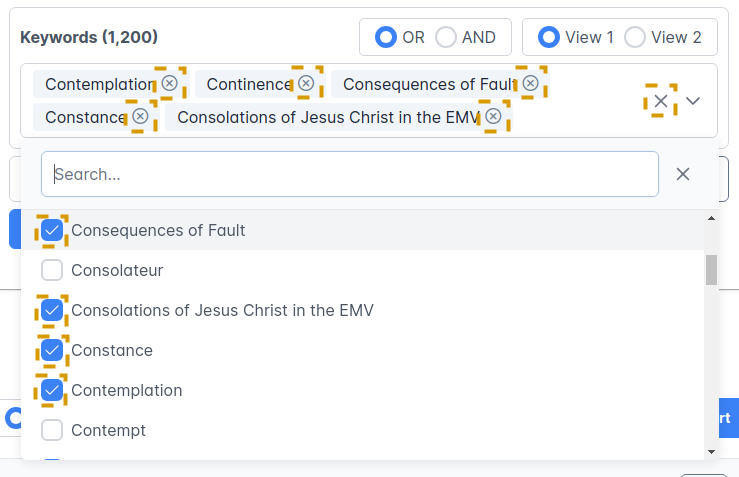
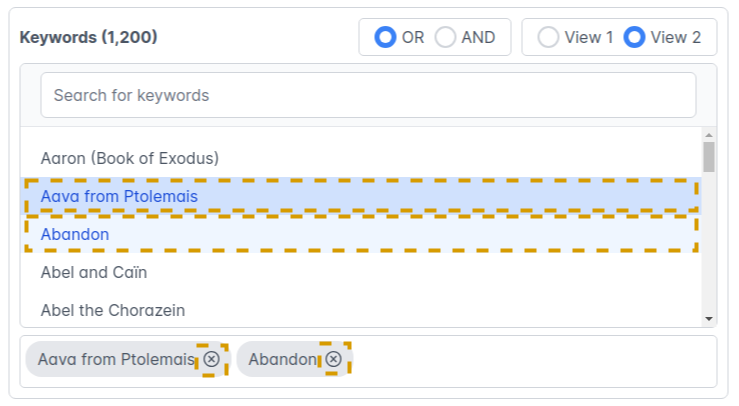
Multicriteria search filter
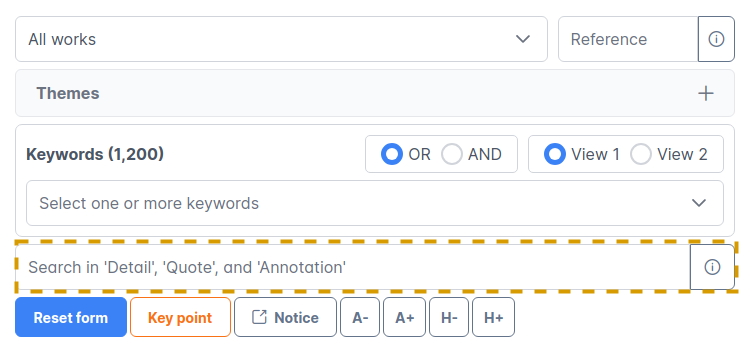
As with the "Reference" field, we encourage you to click the information button to understand how to use this field. An explanatory modal window will appear. It is important to read the information in this modal.
As shown in the image, by using this search field, you will search within the "Detail," "Citation," and "Annotation" fields of each note.
For a note to be found, what you have entered in the search field must appear in at least one of these three fields ("Detail," "Citation," or "Annotation").
Search form buttons

- The "Reset form" button is self-explanatory.
- The "Key point" button allows you to track the progress of note-taking in French, which is the chosen reference language. This will give you an overview of the overall progress.
- The "A-" and "A+" buttons decrease and increase the font size for the notes, respectively.
- The "H-" and "H+" buttons decrease and increase the line height for the notes, respectively.
Pagination

- You can change the page number and adjust the number of results displayed per page.
- The total number of notes matching your search is indicated.
- Finally, you can export the notes matching your search in HTML format, provided that the number of results is less than 500. If your search returns more than 500 results and you still want to export all the notes, feel free to contact us via the contact form.
Note

For each note, you can find the following information:
- Name of the work;
- Reference;
- Additional reference (volume, page, etc.);
- List of keywords;
- A "Detail" field (optional);
- A "Citation" field (optional);
- An "Annotation" field (optional);
- Not visible in the image above, but available for other notes.
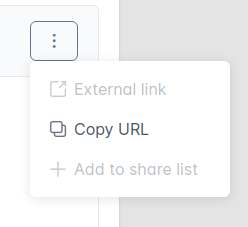
Thanks to the "External link" button, you can access the citation in a broader context.
You can then share this note in two different ways:
-
Copy the note's URL: once copied, you can share this URL with your friends, colleagues, etc. The URL provides access to the note in an isolated context.
-
Add the note to your sharing list: you can then share your sharing list with others.